Which Font Should You Use on a Japanese Resume? Readable Styles and Recommended Sizes
Published:
Published:
Last Updated:
"Does a resume's font really change the impression?" If you build your resume on a computer, the very last decision you face—often as an applicant in your 20s or a second-career changer—is the font. Mincho or Gothic? What point size is right? Is Word's default fine as is? More questions surface than you'd expect.
This article walks through the right answers for resume font choices, written for applicants in their 20s and second-career changers. We cover when to use Mincho vs. Gothic, the recommended sizes for body text, names, and headings, specific font names for Windows and Mac, and what to watch for in online submissions—so by the end you'll have a font setup that reads well to hiring managers.
It's tempting to dismiss font choice as trivial, but it's actually a major factor in the first impression of your resume. The less your experience can do the heavy lifting, the more important it becomes that your document doesn't lose points on appearance.
Hiring managers can review dozens to hundreds of resumes a day. A hard-to-read font drains their attention before they even reach the content, dragging down the evaluation. The reverse is also true: a readable font lets your self-introduction and motivation slide into the reader's mind smoothly, lifting the relative impression.
Font choice is one of the basics of business document etiquette. A decorative or handwriting-style font can read as "someone who doesn't choose with TPO in mind." For applicants in their 20s and second-career changers, the bar includes whether you've internalized the basics of being a working professional—so honoring business document conventions in your font choice matters.
With online submissions, the PDF is read directly on screen, so font differences show up more sharply than they do in print. More hiring managers also review on smartphones, so you need to think about font choices that hold up across screen sizes.
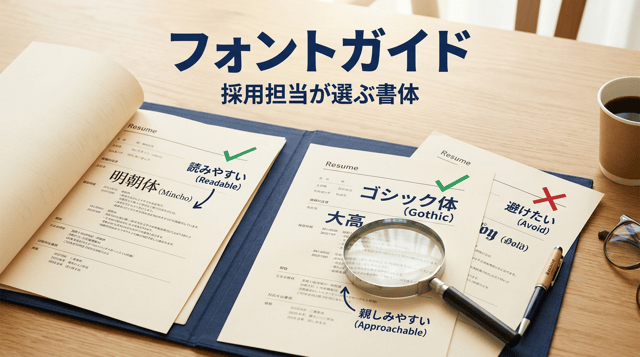
The two typeface families used widely in business documents are Mincho (a serif-style Japanese typeface) and Gothic (a sans-serif Japanese typeface). Knowing the character of each helps you pick what's optimal for a resume.
Use Mincho for the body text of your resume. Mincho is the typeface used in newspapers, books, and official documents in Japan—it's easy to read in long passages and conveys formality. In high-volume fields like motivation and self-introduction, Mincho is gentler on the reviewer's eyes and keeps them reading to the end.
Gothic is bold and highly legible, making it well suited to headings and emphasized text. Putting Gothic on your name field and section headings (education, work history, motivation, etc.) while keeping the body in Mincho gives the layout helpful contrast. Avoid using Gothic for the body text—an all-Gothic resume reads as too casual.
When in doubt, remember the pairing: Mincho for body, Gothic for headings. If you want a clean, unified look, all-Mincho works fine too. All-Gothic, however, dilutes the formality expected of a business document, so avoid it.
Avoid Pop, textbook style, semi-cursive, brush-script, handwriting-style, and decorative fonts entirely. They fall outside business document conventions and read as "not understanding TPO." Highly decorative fonts are the same—nothing beats simple Mincho and Gothic for a resume.
Even within "Mincho" and "Gothic," your computer ships with several specific font names. Here are the standard options for Windows and Mac.
On Windows, the staples for Mincho are MS Mincho, MS P Mincho, and Yu Mincho. From Word 2016 onward, Yu Mincho is the default and looks good both on screen and in print. For Gothic, you have MS Gothic, MS P Gothic, Yu Gothic, and Meiryo. For online submissions where on-screen reading matters, Meiryo is also a solid pick.
On Mac, the standards for Mincho are Hiragino Mincho and Yu Mincho. Hiragino Mincho is a Mac mainstay and looks beautiful on screen and on paper. For Gothic, the standards are Hiragino Kaku Gothic and Yu Gothic. Both Mac and Windows ship with Mincho-family and Gothic-family fonts, so you don't need to fixate on the recipient's OS.
Some fonts come in two versions—like MS Mincho and MS P Mincho. The "P" stands for proportional, meaning the character widths vary. Proportional fonts adjust the width of each Latin character, so English and number-mixed text looks natural. Non-P fonts have fixed widths, which suits tables and number columns where you want digits aligned. On a resume, use a P font for body text and a non-P font for date columns and tabular numbers—it gives you a coherent look.
Yu Mincho and Yu Gothic ship with both Windows and Mac and look beautiful on screen and in print. Setting the body in Yu Mincho and the headings and name in Yu Gothic produces a clean, modern resume. If you're an applicant in your 20s or second-career changer aiming for a "safe but well-presented" finish, the Yu pairing is a no-fail choice.
Font size matters as much as the typeface choice. Too small and it's hard to read; too large and the layout breaks. Here are the recommendations by section.
Use 10.5–11 points for body fields—education, work history, motivation, self-introduction. Word's default is 10.5pt, so you can leave it as is when in doubt. It's the standard size for business documents, easy to read on screen and in print, and balanced against the field size for the volume of information.
The name field should be the most prominent item on the resume, so set it 14–18 points—larger than the body. Adjust based on the field size in your template; landing slightly large in the field reads as well balanced. Setting the name in Gothic with bold makes it easier to remember from the first impression.
Furigana (the phonetic reading above your name) sits smaller than the name itself—8–9 points is the guide. Since it usually appears alongside the name, balance it with the name's size. Too small to read crosses an etiquette line, so keep it at around 9pt to be safe.
Set section headings—"Education," "Work History," "Motivation," "Self-Introduction"—1–2 points larger than the body, at 12–14 points. Pairing Gothic with bold further sharpens the visual hierarchy and makes the resume's structure intuitive. Pre-printed forms usually handle this automatically; mind it when you're building from scratch.
A summary by section: Name 14–18pt, Furigana 8–9pt, Headings 12–14pt, Body 10.5–11pt, Annotations 9–10pt. Sticking to these numbers gives you a layout with the right level of contrast.
Even with the right fonts and sizes, a small slip can ruin the whole document. Here are five mistakes applicants in their 20s and second-career changers make most often.
Using different fonts in different fields is a hard no. Switching between body and heading fonts is fine, but inconsistencies elsewhere read as sloppy. To avoid copy-paste contamination, build the habit of selecting all and unifying the formatting before you submit.
When you want to emphasize something, it's tempting to reach for bold or underline. But too much decoration becomes hard to read, and you lose track of what's actually important. Limit bold to the name and section headings; as a rule, keep the body unstyled. Italic isn't recommended in Japanese fonts, so avoid it.
Beyond font choice, line spacing and letter spacing shape readability. Word's defaults (line spacing 1.0–1.15) are mostly fine, but if the text feels packed, expand to 1.15–1.5 for an easier read. For long-form work history documents, slightly looser line spacing reduces eye strain and helps the reviewer reach the end.
It can read well on screen and look different in print. Always check the full layout in print preview before submitting. Confirm that the font isn't too small, that text doesn't spill out of fields, and that line breaks fall in natural places—doing this now prevents trouble at submission time.
Submitting in Word format means the recipient's environment may swap fonts and break the layout. For online submissions and email, always convert to PDF before sending. PDF locks fonts and layout in place, so what you saw is what they'll see. For overall resume etiquette, also see the complete resume writing guide.
If you're writing the resume by hand, there's a parallel concept to font—the choices you make about your handwriting itself. If a 20s applicant gets a handwritten directive, mind these points.
For handwritten resumes, use a black ballpoint pen. Dark ink that doesn't bleed—gel ink or oil-based ink—is preferred. Never use pencils, mechanical pencils, or erasable pens (e.g., Frixion). Erasable text undermines the trust the document needs as a formal record.
Write characters carefully in block style. Avoid cursive or connected strokes; mind the stops, hooks, and sweeps of each character. Even if you're not confident about your handwriting, slowing down to write one character at a time produces a result that holds up as a business document.
By hand, scale your characters to fit each field. The guide is to fill 60–70% of the field's height, leaving moderate margins above and below without spilling out. For larger fields like the name, character heights of around 70–80% give the entry presence.
For handwritten errors, correction fluid, correction tape, and strikethroughs are all out. Start over on a fresh sheet. If you'd rather avoid the rework, switching to PC-based creation is a viable alternative.
PDF is the standard format for online submissions and email. Here's how to handle fonts when you're sending data.
When converting to PDF, set fonts to embed. In Word, choosing "Save As" → "PDF" exposes an option for "embed fonts"—turn it on so the file displays the same fonts on the recipient's machine. Without embedding, if the recipient's PC lacks a font, a substitute is used and the layout shifts.
Name your PDF something clear, like "Resume_FullName.pdf." Avoid generic names like "rirekisho.pdf" or "Document1.pdf." When hiring managers manage documents from many applicants, the level of organization in your file names becomes part of how your business etiquette is read.
More hiring managers now check applications on their phones. Within the 10.5–11pt body range, leaning toward 11pt makes for an easier read on a phone screen. Balance name and heading sizes with that in mind, so the structure of the document still comes through when the reader is zoomed out.
After you export the PDF, open it on a different PC or smartphone to verify how it renders. Even when it looks fine on the machine you used to create it, fonts or layout can break in another environment. Skipping this check leaves the risk that the hiring manager receives a document they can't read properly.
Yes—it's fine. From Word 2016 onward, Yu Mincho at 10.5pt is appropriate for business documents. Open a fresh file, type into it, and you're already on track for a formal resume. Leave the body alone and adjust only the size of your name and section headings.
When in doubt, use Mincho for body text and Gothic for headings and your name. All-Mincho works fine, but all-Gothic dilutes the formality of a business document. For applicants in their 20s and second-career changers, the safer pairing reduces the chance of losing points.
Generally yes, but it's also common to set Latin and numerals in fonts like Times New Roman, Century, or Arial. Word's "Font → Advanced" lets you set Japanese and Latin/numeral fonts separately, so applying a Western font to dates and numbers can lift the look.
Commercial handwritten forms come with the field labels pre-printed, so what the applicant controls is the handwriting (for handwritten formats) or the font when typing directly into a PDF. When typing into a PDF, set Mincho at 10.5–11pt as the baseline. If the typed font diverges sharply from the printed font, the mismatch shows—choosing a typeface close to the form's printed style helps.
Not recommended. The resume and the work history document are part of the same application set, so unifying fonts gives a coherent impression. Match body and heading combinations as well. For details on the work history document, see our complete manual with templates and role-specific examples.
In Word, go to the Home tab and use "Line and Paragraph Spacing." 1.0 is the minimum; 1.15–1.5 is a comfortable range. If the text feels cramped, try 1.15–1.3. If it sprawls, dial it back to 1.0–1.15.
Slightly, depending on the driver and settings. Home inkjets and office laser printers differ in detail. If you're submitting in print, do a test print on the printer you'll use for the final output. Convenience-store multi-copy machines (where you send a PDF to print) are also high-resolution and a strong option if you don't have a home printer.
Resume font choice hinges on balancing readability with the formality expected of a business document. For applicants in their 20s and second-career changers, choosing a faithful, conventional font setup—rather than reaching for novelty—gives you a resume that doesn't lose points.
Three takeaways: First, the baseline pairing is Mincho for the body (Yu Mincho, MS Mincho, Hiragino Mincho) and Gothic for headings and your name (Yu Gothic, Meiryo, Hiragino Kaku Gothic). All-Mincho is fine, but avoid all-Gothic.
Second, size design. Body 10.5–11pt, name 14–18pt, furigana 8–9pt, headings 12–14pt—use these as your base and fine-tune to fit field sizes. Building from Word's default (10.5pt) keeps you out of trouble.
Third, PDF conversion and a pre-send check. For online submissions, embed fonts when saving to PDF, then open the file in another environment to confirm the layout holds. Name files clearly—"Resume_FullName.pdf"—as well.
For overall resume writing, see the complete resume guide. For your work history document, see our complete manual with templates and role-specific examples. For your self-introduction, see our guide to finding your strengths and using role-specific templates. Use this article to revisit your font setup and finish a resume that helps you clear screening.
A certificate of resignation in Japan must be issued by your employer on request, and is distinct from the separation no...
Under Japanese civil law, employment with no fixed term ends two weeks after you give notice, regardless of whether you ...

Japanese resident tax is charged on the previous year's income and deducted from June to May. Leaving between January an...